
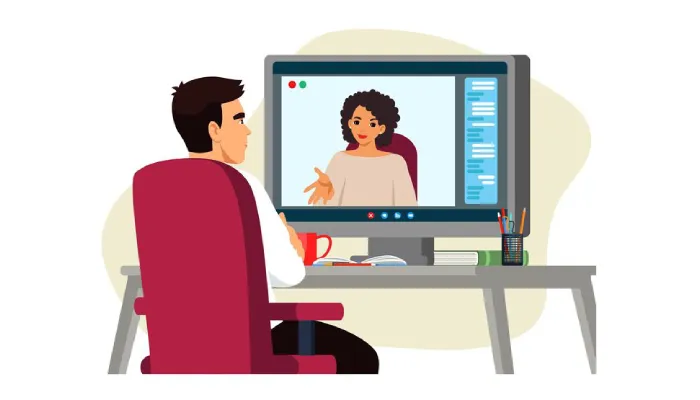
Setting up your space for a remote proctoring test requires careful attention to detail. First, check the requirements from your testing authority to ensure your computer and environment meet all specifications. You should use a laptop or desktop with an external webcam that gives a full view of the space. Make sure your room is well-lit, quiet, and free from distractions; block any entrances if necessary. A clutter-free table is best for your workspace. Finally, familiarize yourself with the testing policies and conduct a technology check beforehand to avoid issues during the exam. Preparing well can make all the difference in your experience.
1. Check Requirements for Remote Testing
Before your remote proctoring test, it is essential to thoroughly check the requirements set by the testing authority. Start by confirming the specific technology requirements outlined by your test provider. This includes ensuring that your computer meets the necessary specifications, such as having the right operating system and software installed. Make sure you have access to any required software in advance of your test date to avoid last-minute issues.
It’s also wise to check for any updates or changes to testing requirements as these can vary over time. Understanding protocols for dealing with technical problems during the test is crucial; inquire about whom to contact in case you encounter issues. Additionally, verify if a specific web browser is needed for the testing software, as this can affect your testing experience.
Prepare all necessary login credentials and identification beforehand. Some testing authorities may have restrictions on the type of equipment you can use, so be sure to review these guidelines carefully. Reading any participant guides provided by the testing authority can offer valuable insights into what to expect. If you have questions or need clarification, don’t hesitate to reach out to support for assistance.
- Confirm the testing authority’s requirements for remote testing setup.
- Review the specific technology requirements for your test provider.
- Ensure you have access to the required software prior to the test date.
- Check for any updates or changes to testing requirements.
- Understand the protocols for technical issues during the test.
- Verify if any specific browser is required for the testing software.
- Ensure you have any needed login credentials and identification ready.
- Check if there are any specific restrictions on the type of equipment you can use.
- Read any participant guides provided by the testing authority for additional information.
- Reach out to support if you have questions about the requirements.

2. Understand System Requirements for Your Computer
Before you start your remote proctoring test, it is crucial to understand the system requirements for your computer. First, check if your operating system is supported by the testing software, as compatibility issues can hinder your ability to take the test. Verify that your computer has enough processing power; a machine with a slow processor may struggle to run the necessary applications smoothly. Additionally, ensure that your RAM meets the minimum requirements, as insufficient memory can lead to lag and interruptions during the exam.
Storage space is also a factor to consider. Confirm that you have adequate space available for the testing software and any updates that might be required. It is wise to install the latest updates for your operating system as well, as this can improve performance and security.
Some testing software may require specific security settings to be adjusted. Make sure your antivirus software isn’t blocking the testing application, as this could prevent it from functioning properly. To further ensure your system is ready, use a system diagnostics tool to test your computer’s performance. This can help you identify any potential issues before the test day.
Familiarizing yourself with the testing software interface through practice tests can also ease your anxiety. Understanding how to troubleshoot common system issues will give you confidence as you prepare for your remote proctoring experience.
3. Set Up Your Technical Specifications
To ensure a smooth experience during your remote proctoring test, your technical setup is crucial. Start by installing all required software and updates ahead of time. This includes the testing platform and any necessary applications. It’s wise to connect your computer to a stable power source, so you won’t face interruptions due to a low battery.
Check your webcam functionality, making sure it’s positioned correctly to provide a clear view of your testing environment. A reliable external webcam is often recommended, as it can give a 360-degree view. Likewise, ensure your microphone is working well and positioned for optimal sound capture. Conduct a quick test to confirm that your audio settings are correct and functional.
Internet connectivity plays a significant role in your testing experience. Test your internet speed and stability beforehand, aiming for a minimum of 3 Mbps dedicated bandwidth. If possible, use a direct ethernet connection for the best performance, and conduct your speed test at a time when no other devices are using the internet.
It’s also important to keep your computer’s desktop organized and free of distractions. Close unnecessary tabs and applications to create a focused environment. Additionally, familiarize yourself with the screen-sharing feature, as you may need it during the test.
Lastly, have a backup device ready in case of technical failure, and prepare any necessary cables or adapters for your equipment. Being proactive with your technical specifications can help reduce stress and allow you to concentrate on performing your best during the test.
4. Organize Your Room for Testing
Choosing the right environment is crucial for your remote proctoring test. Start by selecting a quiet room that is free from interruptions; this means no noisy pets or family members wandering in. Make sure the space is well-ventilated and comfortable, as you may be sitting for an extended period. Position your desk or table away from any windows to minimize visual distractions, which can break your concentration. A comfortable chair is also essential, as it will help you maintain focus and reduce discomfort during the test.
It’s a good idea to have a plain backdrop behind you, as this keeps the focus on you and prevents distractions for your proctor. Before the test begins, remove any items from your workspace that could be distracting or are not allowed, such as books, notes, or electronic devices unrelated to the exam. Your testing setup should also allow the proctor to monitor your environment effectively.
Set your computer up at eye level to promote good posture, helping you to stay comfortable throughout the test. Lighting plays a key role in how well you are seen; ensure that you are well-lit from the front, so the proctor can see your face clearly. If natural light is too bright or inconsistent, consider using curtains or blinds to control the outside light.
5. Control Lighting and Noise Levels
Good lighting and minimal noise are key for a successful remote proctoring test. Whenever possible, utilize natural light for a bright environment, but be careful to position your screen to avoid glare. If the natural light is insufficient, opt for soft, diffused lighting to enhance visibility without casting harsh shadows on your workspace.
To maintain focus, close windows to reduce outside noise. If your environment is still noisy, consider using a fan or a white noise machine to create a consistent sound backdrop that can help drown out distractions. Test the acoustics of your room beforehand to identify the quietest spot, ensuring that you can concentrate fully during your test.
Before starting, turn off all alarms and notifications on your devices to prevent interruptions. If allowed by the testing guidelines, wearing noise-cancelling headphones can also help you stay focused. Make sure that pets and other animals are kept out of the testing area to avoid any unexpected distractions. Additionally, inform others in your household about your testing schedule, so they can help minimize interruptions during your exam. Lastly, use task lighting directly focused on your workspace to ensure that you can see everything clearly without straining your eyes.
6. Create a Clutter-Free Workspace
To perform your best during a remote proctoring test, it’s essential to start with a clean slate. Clear your desk of any unnecessary items that may distract you or violate testing guidelines. Keep only the materials you might need, like a pen and paper for notes or calculations. A single monitor setup is ideal, as multiple screens can lead to distractions. It’s also wise to keep food and beverages away from your testing area to prevent any accidental spills that could disrupt your focus. Limit the items within reach to reduce clutter, and consider using organizers to keep essential materials tidy and accessible. Ensure that your computer monitor is clean and free of fingerprints, as clarity is crucial during your test. Lastly, only place allowed items on your desk as specified by the testing authority, which helps maintain a professional and distraction-free environment.
7. Remove Distractions from the Area
To succeed in a remote proctoring test, it’s essential to create a distraction-free environment. Start by turning off notifications on your phone and other devices to prevent interruptions. Let your family or roommates know your testing schedule, so they can respect your focus time. Consider removing any non-essential electronics that might catch your attention, such as game consoles or tablets.
Next, evaluate your background. Cover any distracting images or surfaces with a simple cloth, ensuring a clean visual space. Minimize any visual distractions in your peripheral view, making it easier to concentrate on the test. Using a timer can help you manage your time effectively, keeping you on track without glancing at the clock constantly.
To further enhance focus, think about using apps that block distracting websites during your test period. It’s also wise to have a plan for unexpected interruptions, whether that means a quick note to jot down a thought or a strategy to refocus. Finally, practicing focusing techniques beforehand can help train your mind to maintain concentration during the exam.
8. Familiarize Yourself with Testing Policies
Before test day, take the time to read all testing policies thoroughly. Understanding the check-in process is crucial, as it helps you know what to expect when you arrive for your test. Review the list of prohibited items to avoid any last-minute issues that could derail your testing experience. Be aware of the procedure for handling technical problems during the test, as knowing how to address these issues can reduce anxiety. Familiarizing yourself with the rules regarding breaks and timing is also important, ensuring you manage your time effectively throughout the exam. It’s essential to understand the consequences of academic dishonesty in the testing environment, as the repercussions can be severe. Additionally, know how to report any concerns to the proctor during the test, and be clear on the identification requirements for check-in. Finally, familiarize yourself with the process for submitting a test or reporting issues afterward. If anything is unclear, don’t hesitate to reach out to your testing authority for clarification on any policies you do not understand.
9. Prepare a Comprehensive Checklist
Creating a thorough checklist is essential for a smooth remote proctoring test experience. Start by listing all the technical equipment you will need, such as your computer, webcam, keyboard, and internet connection. Make sure each piece is ready and functioning properly. Next, establish a timeline for setting up your testing environment, breaking it down into manageable steps. As you prepare each item, check it off your list to avoid missing anything crucial.
In addition to technical gear, consider what personal items you might need for comfort during the test, like water, snacks, or a cozy sweater. Don’t forget to prepare a backup plan in case you encounter technical issues, like having a secondary device on hand or knowing how to contact support.
Also, review the testing policies and guidelines beforehand, so you know what to expect. Ensure your testing area is tidy and organized ahead of time, which can help reduce distractions and anxiety. The night before your test, go over your checklist one last time for any final preparations. Lastly, remind yourself to have a healthy meal before the test to help you stay focused and energized. Make sure your check-in documents are readily accessible, as this will help ease the process when the test begins.
Frequently Asked Questions
What is remote proctoring and why is it important?
Remote proctoring is a way to monitor tests taken at home through your computer. It helps ensure that the test is fair, keeping things honest and secure.
How do I choose the right spot in my home for the test?
Pick a quiet, well-lit area where you won’t be disturbed. Make sure there is a clean desk and background, as they may check your surroundings.
What equipment do I need for remote proctoring?
You will need a computer or laptop with a webcam, a reliable internet connection, and possibly a microphone. Ensure everything is working before the test starts.
What if my internet connection drops during the test?
If your internet goes out, try to reconnect as soon as possible. Inform your proctor or testing authority if it happens, as they might provide backup steps.
Are there any specific rules I must follow during the proctored test?
Yes, each test may have its own rules, but generally, you should avoid using notes or help from others, and keep your workspace clear of any unauthorized materials.

Seth Hatfield, a maverick in the realm of writing, seamlessly weaves tales from the world of construction and beyond. With a unique blend of insight and creativity, he invites readers on a journey through his diverse repertoire of articles.